Sharing and cloud
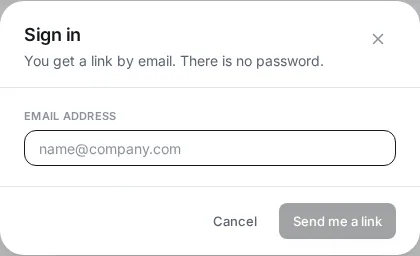
You can use the app without an account. Sign in to sync a project to your other devices or to share it.
Sign in
Section titled “Sign in”- Click Sign in in the menu bar.
- Type your Email address and click Send me a link.
- Open the link in the email within 15 minutes. You stay signed in for 90 days.
Put a project in the cloud
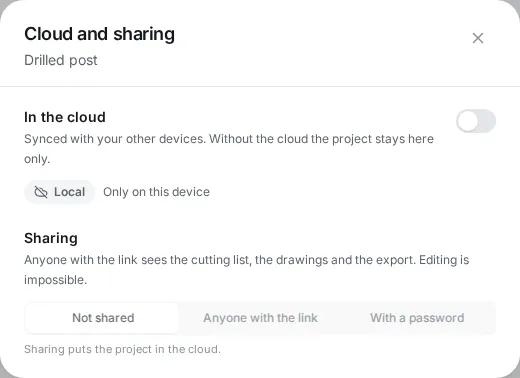
Section titled “Put a project in the cloud”- Open the project and choose Project > Cloud and sharing….
- Switch on In the cloud. The badge in the project bar changes from Local to the sync state.
Changes upload a moment after you make them. The app pulls changes when it starts, when you return to the tab and when you are back online.
Share a project
Section titled “Share a project”In Cloud and sharing…, pick Anyone with the link or With a password (at least 4 characters), then Copy link. Sharing puts the project in the cloud.
- People with the link see the parts, drawings, issues and export. They cannot edit; Copy to my projects gives them their own copy.
- New link makes the old link stop working at once. Stop sharing ends it.
When two devices disagree
Section titled “When two devices disagree”If a project changed on another device, Changed on another device asks what to do:
| Choice | Result |
|---|---|
| Keep mine | Your version replaces the cloud version. |
| Use cloud version | The cloud version loads; yours is kept as “(local copy)”. |
| Decide later | Syncing pauses for this project. |
AI assistants
Section titled “AI assistants”You can connect an AI assistant such as Claude to your cloud projects. Add https://<app address>/mcp as a connector in the assistant and click Allow on the Connect an AI assistant page. The assistant can create, read and change your cloud projects. It cannot delete projects, change sharing or reach other accounts.