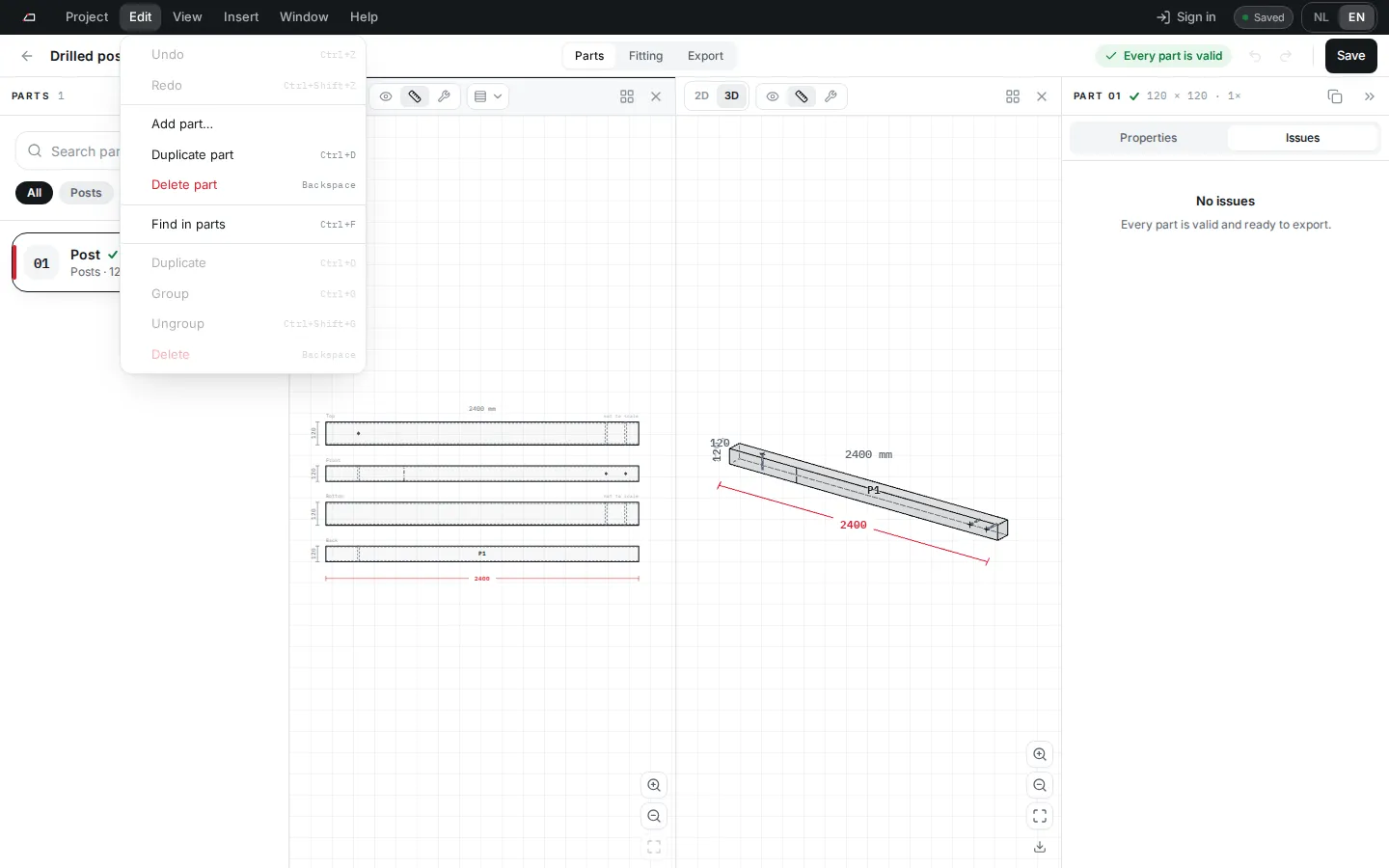
Each project has its own history of up to 100 steps.
Quick changes to the same field count as one step.
The history lasts until you reload or close the page. It is not saved and does not sync to the cloud.
Deleting a project, or loading a newer cloud version of it, clears its history.
Related pages
Keyboard shortcuts: All keyboard shortcuts in Zaaglijst Studio, for Windows, Linux and Mac, plus grab (G), move (M) and Alt-drag to copy in fitting.
The workspace: Find your way around Zaaglijst Studio: the menu bar, the project bar, the parts list, the viewports and the properties panel.
Selection and colour: How you select parts, processings and members, and what the colours mean: blue for selection in fitting, green, amber and red for status.