Selection and colour
Select things
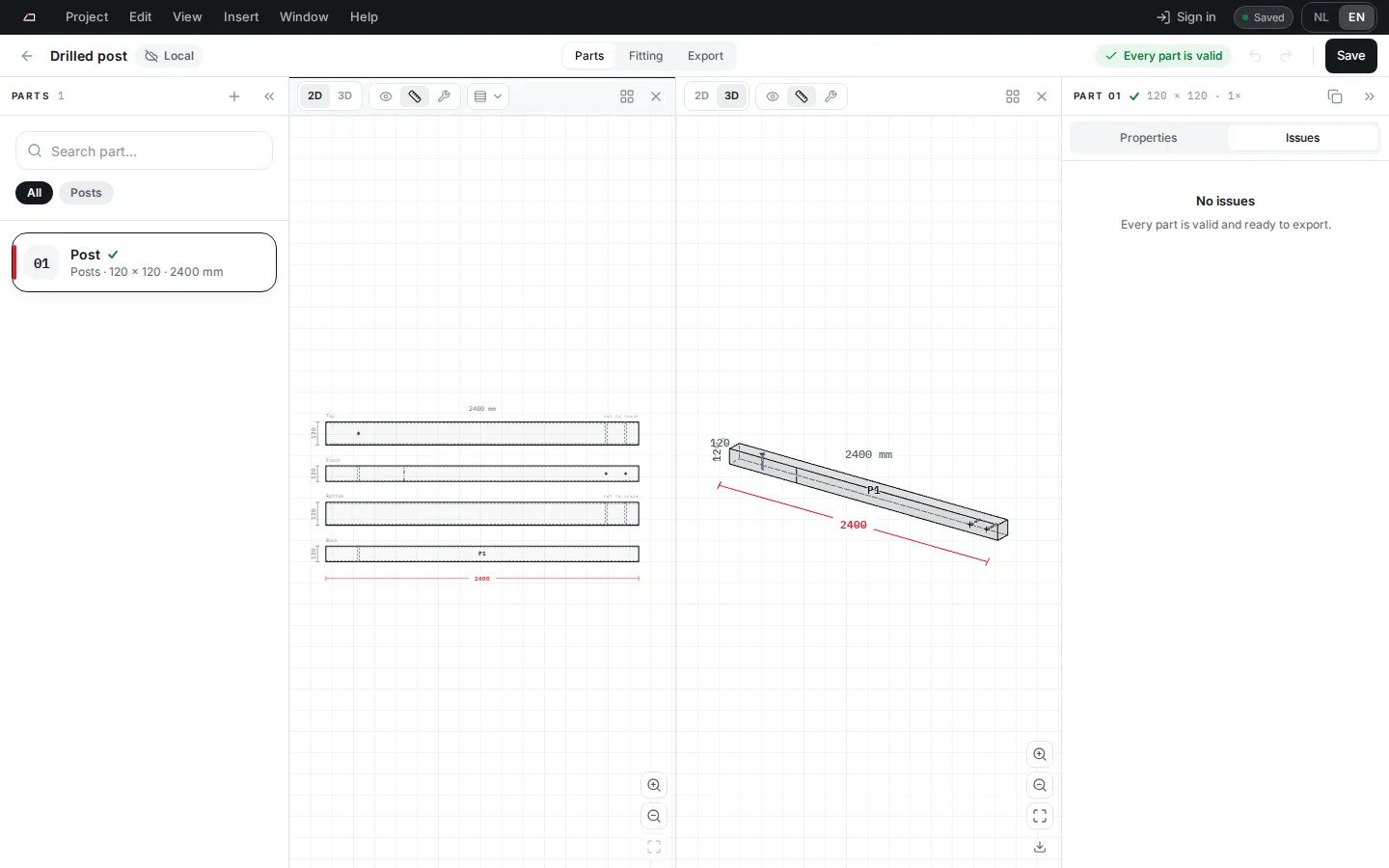
Section titled “Select things”- Parts: click a part in the parts list. Its drawings and properties open.
- Processings: tick the box on a processing card. With several ticked, the toolbar shows how many are selected and offers Delete, Mirror and More actions.
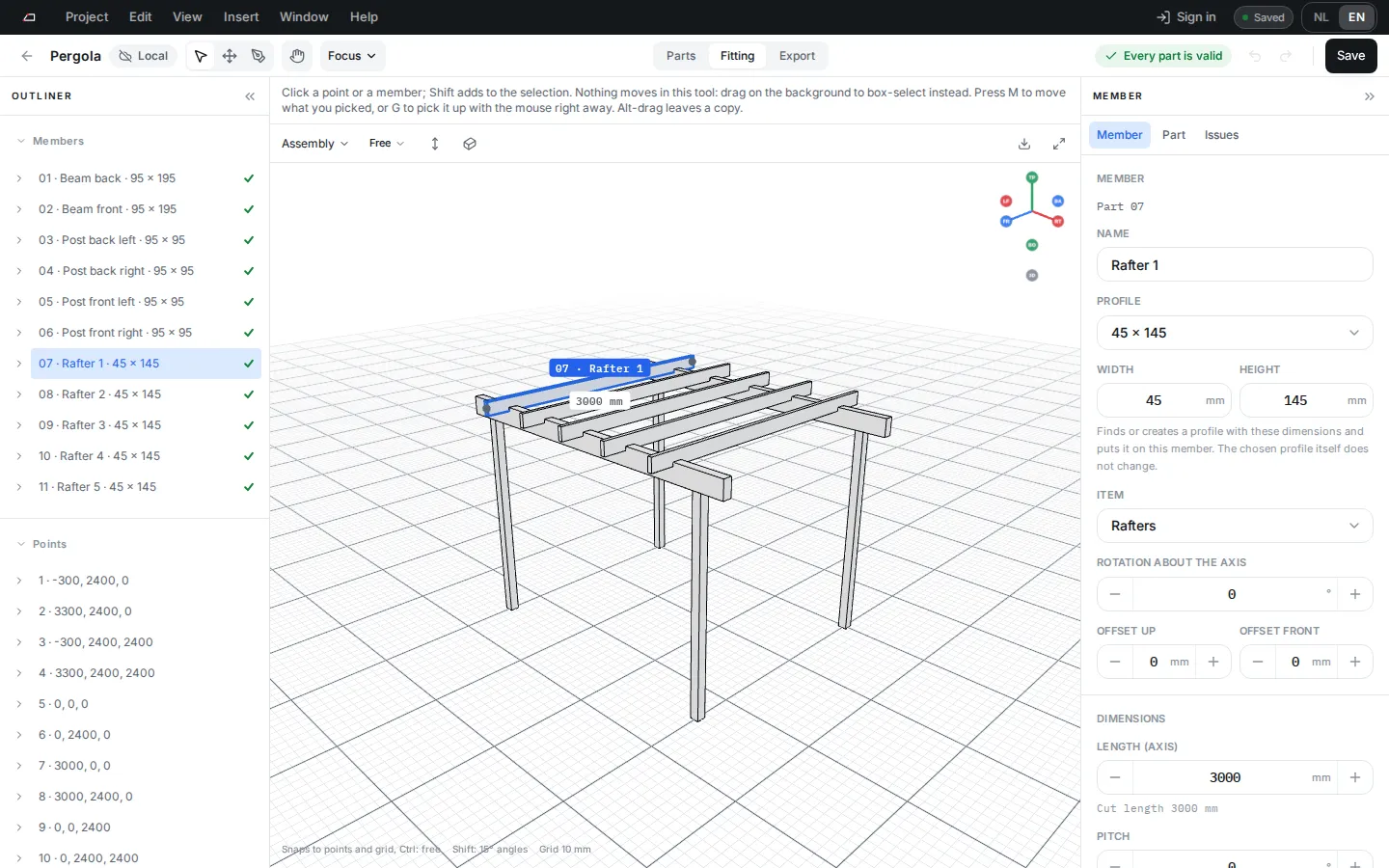
- Members and points in Fitting: click them in the 3D view or the outliner. Hold Shift to add to the selection. With the Select tool, drag on the background to draw a selection box.
- Press Esc to clear the selection in Fitting.
What the colours mean
Section titled “What the colours mean”| Colour | Meaning |
|---|---|
| Blue | The selection in the fitting workspace. It has its own colour so red can keep meaning a problem. |
| Green with a tick | Valid. The status reads Every part is valid. |
| Amber with a triangle | A warning: check it before you export. |
| Red with a square | An error: fix it before you export. |
Status is shown by shape as well as colour, so you can read it without colour vision.
Find the problem
Section titled “Find the problem”Click the status in the project bar to open the Issues tab, or click the tab yourself.